
In the previous article, we demonstrated how to configure basic data access control in a PostgreSQL/PostGIS database by defining editor and viewer roles. This approach built a solid foundation for multi-user GIS workflows, where some users can edit data and others can only view it in QGIS.
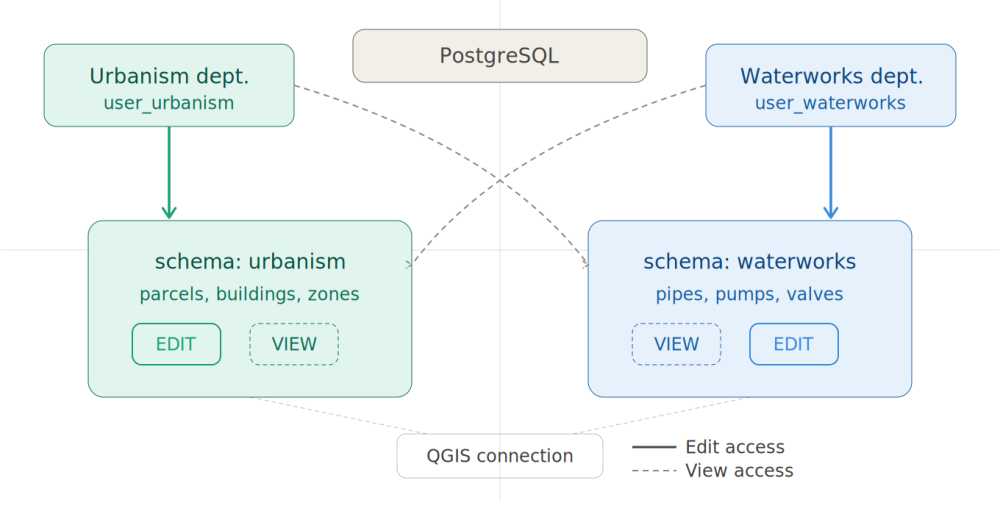
In this article, we take that concept further by introducing schema-based access control across multiple departments. Instead of a single set of roles, each department, urbanism and waterworks, gets its own schema. Each department can fully edit its own data and only view the other department’s data.
Database Structure Overview
This example uses a database named gis_municipality, structured around two separate schemas. Each schema represents a distinct municipal department.
The urbanism schema holds spatial data related to urban planning, with tables for parcels, buildings, and zones. The waterworks schema covers infrastructure data, with tables for pipes, pumps, and valves.
This separation keeps each department within its own data namespace. It reduces the risk of accidental modifications and makes permission management much easier.
Creating Roles and Users
Before assigning permissions, we need to create the roles and user accounts for database access. In this setup, we define two group roles, one for each department. These roles act as templates and receive privileges in the next step.
CREATE ROLE urbanism_role NOLOGIN;
CREATE ROLE waterworks_role NOLOGIN;
CREATE USER user_urbanism WITH PASSWORD 'your_password';
CREATE USER user_waterworks WITH PASSWORD 'your_password';

GRANT urbanism_role TO user_urbanism;
GRANT waterworks_role TO user_waterworks;
Granting Schema-Based Permissions
With the roles and users in place, we can now assign the appropriate privileges. Each department role gets full edit access to its own schema and read-only access to the other department’s schema.
Urbanism role
We grant urbanism_role full access to the urbanism schema, allowing users to select, insert, update, and delete records. For the waterworks schema, we grant read-only access.
-- Full access to urbanism schema
GRANT USAGE, CREATE ON SCHEMA urbanism TO urbanism_role;
GRANT SELECT, INSERT, UPDATE, DELETE ON ALL TABLES IN SCHEMA urbanism TO urbanism_role;
GRANT USAGE ON ALL SEQUENCES IN SCHEMA urbanism TO urbanism_role;

-- Read-only access to waterworks schema
GRANT USAGE ON SCHEMA waterworks TO urbanism_role;
GRANT SELECT ON ALL TABLES IN SCHEMA waterworks TO urbanism_role;
Wateworks role
The same logic applies to the waterworks_role, with the schemas reversed.
-- Full access to urbanism schema
GRANT USAGE, CREATE ON SCHEMA waterworks TO waterworks_role;
GRANT SELECT, INSERT, UPDATE, DELETE ON ALL TABLES IN SCHEMA waterworks TO waterworks_role;
GRANT USAGE ON ALL SEQUENCES IN SCHEMA waterworks TO waterworks_role;

-- Read-only access to waterworks schema
GRANT USAGE ON SCHEMA urbanism TO waterworks_role;
GRANT SELECT ON ALL TABLES IN SCHEMA urbanism TO waterworks_role;
Applying Default Privileges
-- Default privileges for urbanism role
ALTER DEFAULT PRIVILEGES IN SCHEMA urbanism
GRANT SELECT, INSERT, UPDATE, DELETE ON TABLES TO urbanism_role;

ALTER DEFAULT PRIVILEGES IN SCHEMA urbanism
GRANT USAGE ON SEQUENCES TO urbanism_role;

ALTER DEFAULT PRIVILEGES IN SCHEMA waterworks
GRANT SELECT ON TABLES TO urbanism_role;

-- Default privileges for waterworks role
ALTER DEFAULT PRIVILEGES IN SCHEMA waterworks
GRANT SELECT, INSERT, UPDATE, DELETE ON TABLES TO waterworks_role;

ALTER DEFAULT PRIVILEGES IN SCHEMA waterworks
GRANT USAGE ON SEQUENCES TO waterworks_role;

ALTER DEFAULT PRIVILEGES IN SCHEMA urbanism
GRANT SELECT ON TABLES TO waterworks_role;
Connecting to QGIS
Testing the Setup
SELECT grantee, privilege_type
FROM information_schema.role_table_grants
WHERE table_schema = 'urbanism';
The query returns a list of grantees and their privileges for the selected schema, confirming that each role has the correct level of access.
Summary
In this article, we showed how to implement schema-based access control in a PostgreSQL/PostGIS database with two departments. We assigned separate schemas to the urbanism and waterworks departments and configured role-based privileges. As a result, each user can fully edit their own data and view the other department’s data.
This approach scales well in real-world municipal GIS environments where multiple departments share a single database but need clear boundaries between their data. Combined with QGIS, it provides a practical and secure foundation for collaborative spatial data management.